Browse topics
Account & Settings
Setting Up Email Templates
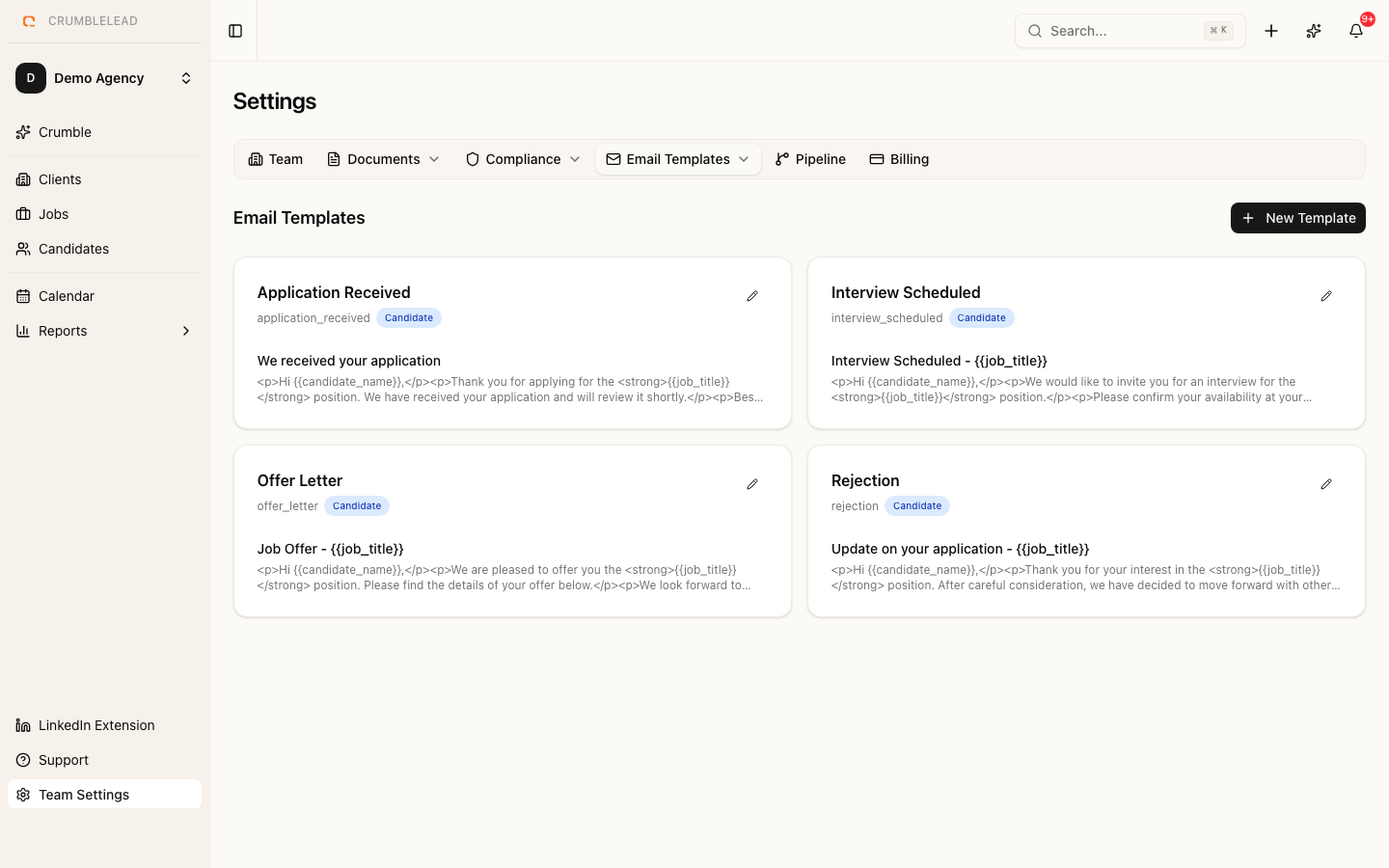
Why use email templates?
Recruiters send the same types of emails hundreds of times: application acknowledgments, interview invitations, offer letters, and rejections. Templates let you standardize these communications while still personalizing each one.
Creating a template
Go to Settings > Email Templates and click Create Template. Each template needs:
- Name - An internal name to identify the template
- Type - What kind of email this is (application received, interview scheduled, etc.)
- Subject line - Supports variables
- Body - Rich text editor with variable support
Available variables
Use these placeholders in your templates and they will be replaced automatically when you send:
{{candidate_name}}- The candidate's full name{{job_title}}- The job listing title{{team_name}}- Your agency name
Using templates
When sending an email from a candidate's profile or from the job pipeline, select a template from the dropdown. The variables will be filled in automatically. You can still edit the email before sending if you need to add a personal touch.