Browse topics
Using Talent Pools to Organize Candidates
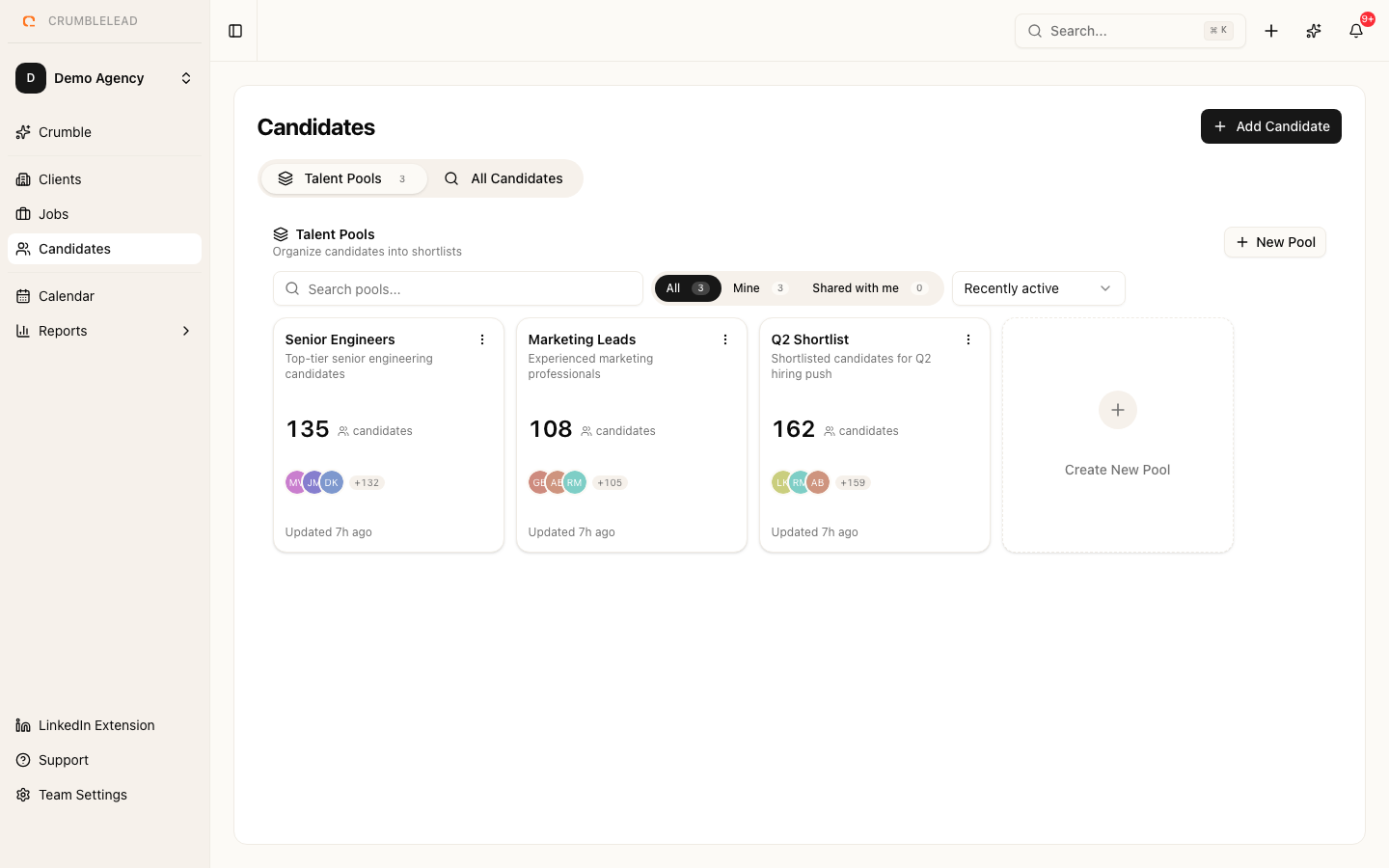
What are talent pools?
A talent pool is your bench: a group of people you want to keep in touch with, even when there is no role for them today. When a role opens, your best candidates are already a click away.
Good pools are specific, for example "Senior React devs, Berlin", "CFOs open to a move" or "Silver medallists" (strong runners-up from roles you have filled).
Creating a pool
Go to Candidates, open the Talent Pools tab and click New Pool. Give it a clear name and, if you like, a line on what it is for.
Adding people
- All Candidates: select people and click Add to Pool, or drag them onto a pool card.
- A candidate's profile: click Add to Talent Pool.
- The LinkedIn extension: choose a pool when you import someone.
- Crumble: ask it to add people to a pool.
- Inside a pool: click Add candidates and search by name or email.
Keeping people warm
Everyone in a pool has an outreach status:
- To contact: nobody has reached out yet.
- Contacted: set automatically when you email them from Crumblelead, or by hand.
- Replied: set this when they answer.
Each pool card shows where things stand and suggests the next step: Start outreach, Follow up for people who have gone quiet for 60 days or more, or Add to a job for people who replied.
Placing people from a pool
Open the pool, tick the people you want and click Add to job to put them into that job's pipeline. From the same toolbar you can also Copy to pool, change their status in bulk or remove them, and you can export the list as a CSV.
Sharing pools
Pools are private to you until you share them. Open a pool and click Share to give teammates view or edit access. Only people with edit access can add or remove candidates.
Tips
- Check your pools before sourcing externally for a new role.
- When you close a role, add the runners-up to a silver medallists pool.
- A candidate can be in several pools at once.