Browse topics
Getting Started
Managing Clients and Contacts
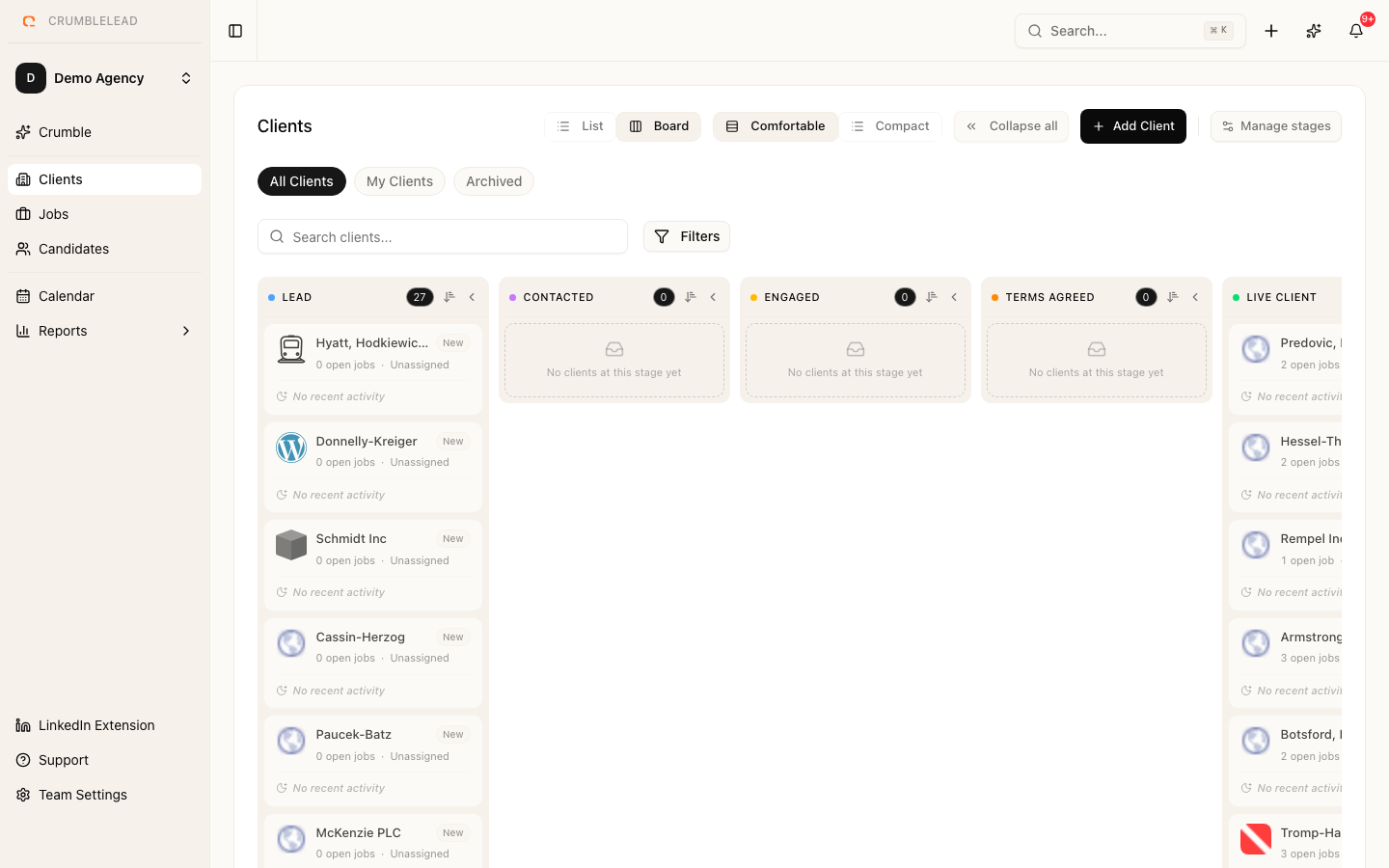
Adding a client
Go to Clients in the sidebar and click Add Client. Enter the company details:
- Company name (required)
- Industry and Website
- Notes - Any important context about the relationship
Client stages
Clients are organized into stages that reflect your relationship:
- Lead - Potential client you are pursuing
- Live Client - Active client with open or recent roles
- Not Interested - Client who has declined to work with you
Move clients between stages as your relationship evolves.
Managing contacts
Each client can have multiple contacts. One contact is marked as the primary contact for communications. Add contacts from the client detail page with their name, email, phone, and job title.
Linking jobs to clients
When you create a job listing, you assign it to a client. This lets you see all open and past roles for each client in one place, making it easy to understand the full scope of each relationship.